

Check In
Last updated on December 15, 2025
Check In
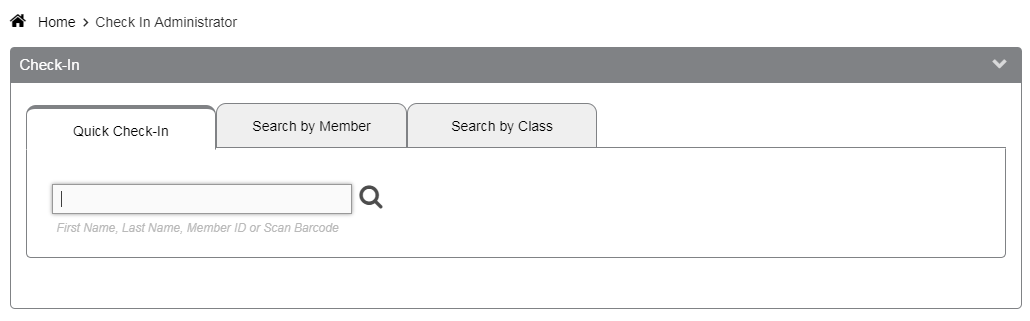
The Check In page allows you and your staff to check members in either using the Quick Check-In, searching by individual Member, or by searching by Class.
This gives you complete control of the check in process, including checking members in for past classes or appointments. Click Here for a detailed article on the Quick Check-In tab.
Search by Member
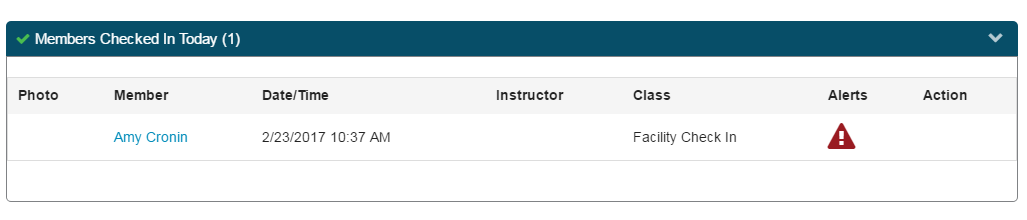
When you click Check In, you will first see the Search by Member tab, and the Members Checked In Today list.
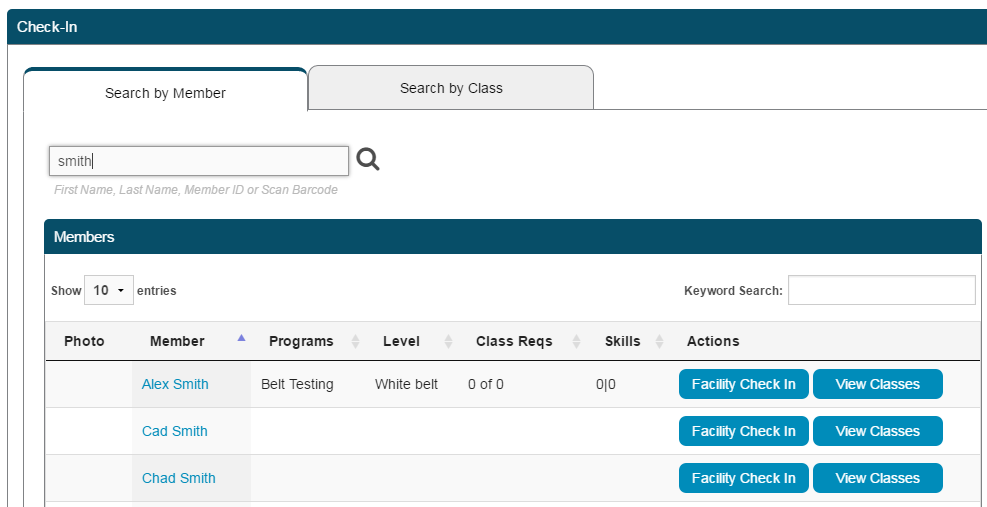
The Search by Member tab allows you to check in an individual member. You can search by First Name, Last Name, Member ID, or scan a bar code. For bar code scanning, click the Member ID field to set your cursor. The cursor line should blink.
Once you have searched your member, all members that match the search will show in the Members list. The Members list will show the member’s photo if saved on their profile, and their Program/Level/Classes Required/Skills if you use and assign Programs. To check a member in, choose Facility Check In or View Classes.
Booked Classes - if a member has pre-booked a class, you will see the Booked Classes option instead of View Classes. Click the Booked Classes button to check the member into any classes they have booked during the future and late check in period.
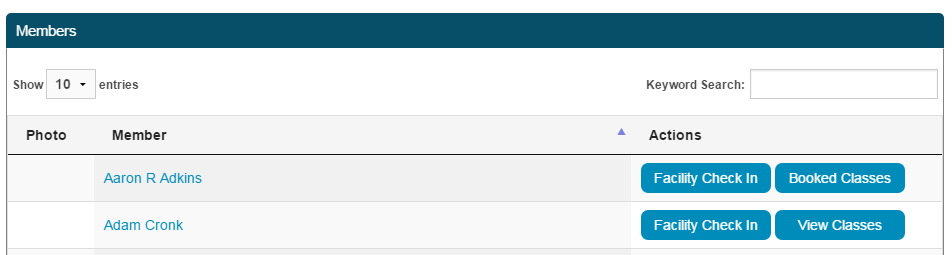
Facility Check-In - If you have Facility Check In setup under Setup>Inventory>Facility Check In, this option will display. This will allow you to check your members into the gym, but not into any specific class. This button can be renamed, by changing the name of the Facility Check In option.
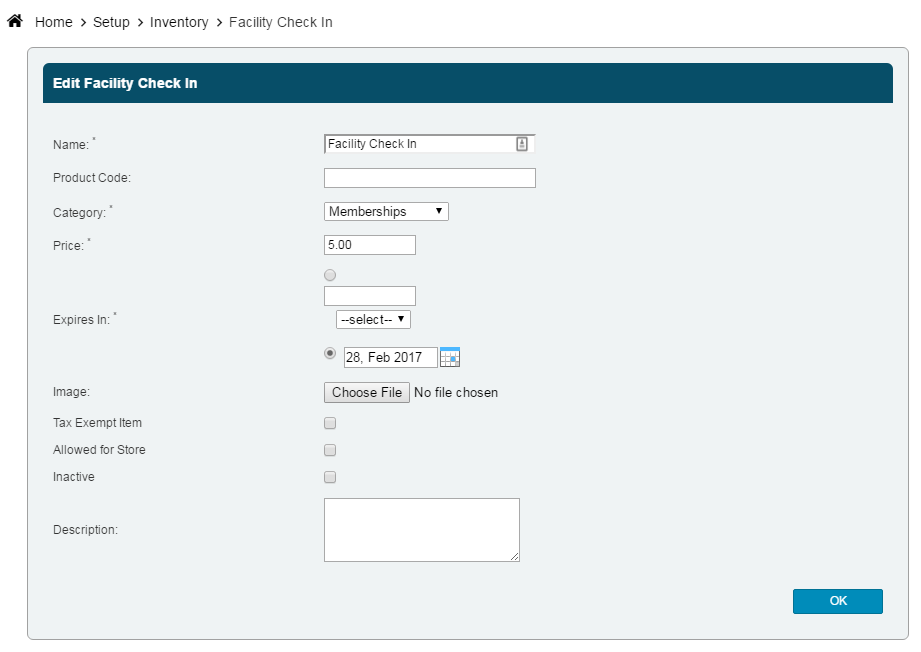
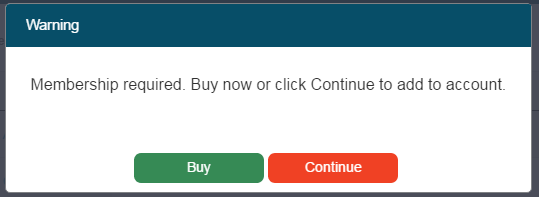
If your member has Facility Check In in their Remaining tab, they will be checked in. If not, you will be prompted to sell them a facility membership, or click Continue to put the check in On Account or Buy to sell your member a Facility Check In session or membership.
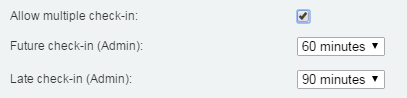
View Classes – Much like the Kiosk settings, the classes displayed here are based on your Future and Late Check In settings located under Setup>Settings>Club Settings. There are separate settings for your Kiosk and your Admin. This allows your member facing check in (Kiosk) to have different rules then your staff/admin check in. Under the Club Settings, set the “Allow Multiple Check-In” option if you would like members to be able to check in multiple times a day.
Click View Classes next to the Member you want to check in.
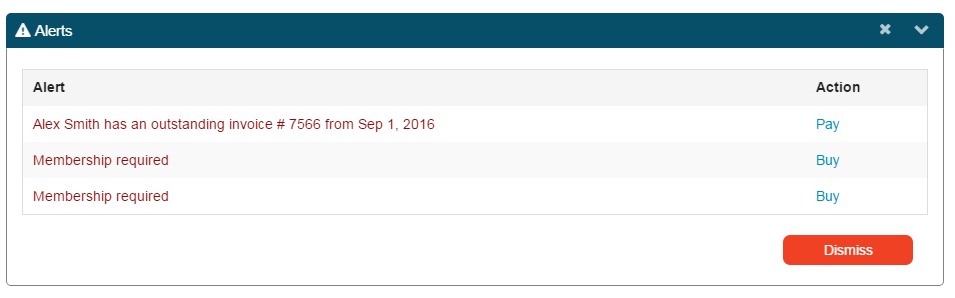
Alerts - If the member has any alerts, they will show on this screen. NOTE: Alerts that are displayed are based on what is setup in Setup>Alerts for the staff member that is signed in.
Check-In: Under Select Classes, there are two options–Purchased and Non-Purchased Classes.
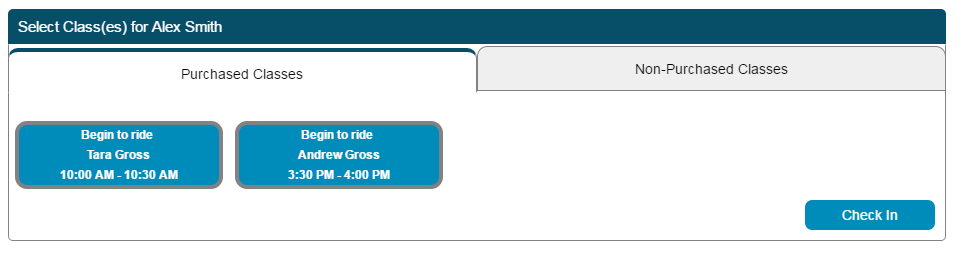
Purchased Classes tab: Displays eligible classes if a member has pre-purchased classes or has an active contract. Eligibility is based on the items purchased (e.g. Contract, Package, etc.) and your check-in settings (Before and After times).
Non-Purchased Classes tab: Displays all ineligible classes for a member. Ineligible classes are classes not pre-purchased through a contract, package, or individual sessions. Checking a member in to a non-purchased class or appointment adds that session to the Member’s On Account tab to be billed at a later date.
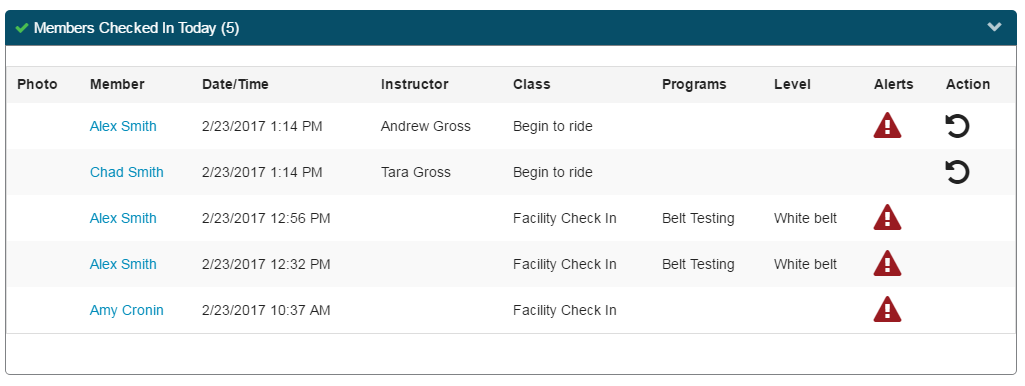
To check in a member, click the class and click Check In. You will see the check in list under Members Checked in Today.
Click to view alerts, and to remove the check in.

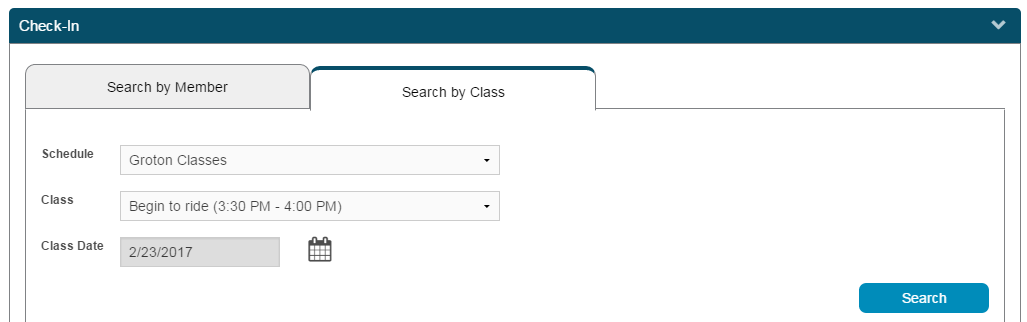
Search by Class – Click the Search by Class tab to check members in by class in bulk and for any date. Find a class by choosing a specific Schedule and Class from the drop-down menus, and use the calendar to select your Class Date. Choosing a specific Schedule will filter the Class drop-down by all available classes within that schedule for the date selected. Note: the class list will only include classes setup on your schedule and does not include private sessions. Private sessions can only be checked in from Member tab or directly in schedule.
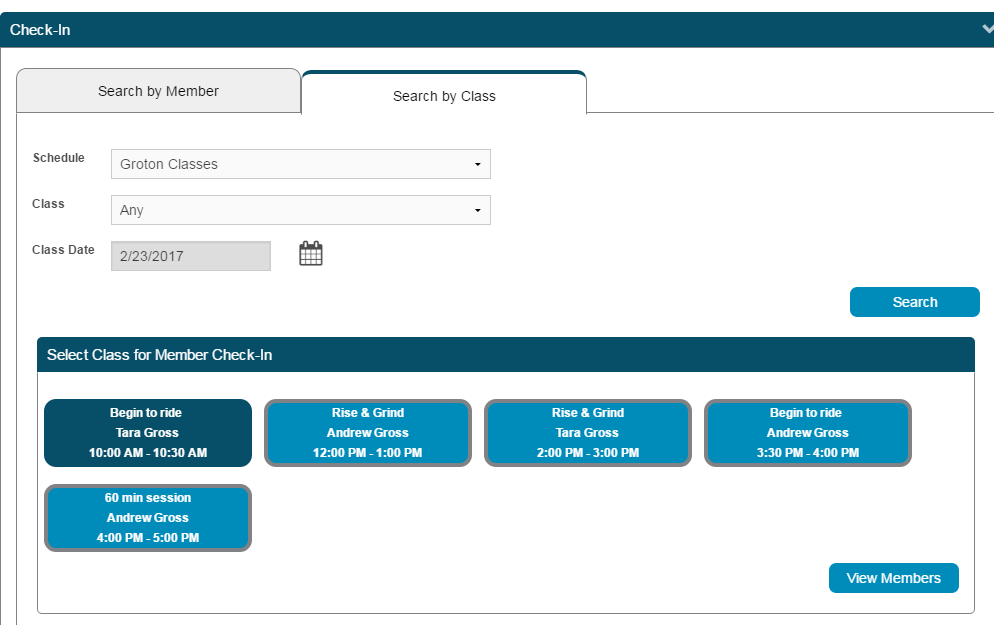
Select class for Member Check-In - If your search brings up multiple classes, click the Class Name for check in, and click View Members. Note: only one class can be selected and checked in at a time.
The member’s list is divided into three sections:
Booked – members already pre-booked into the class.
Eligible – members who have the appointment type item in their remaining (purchased classes).
Checked In – members who have already checked in.
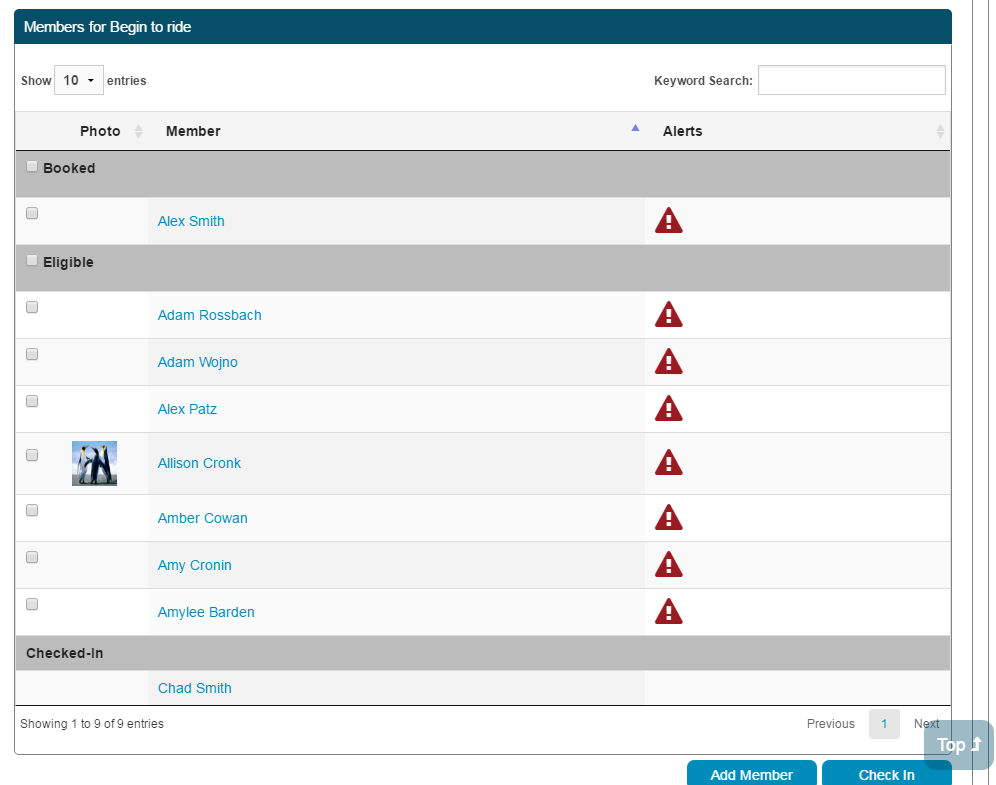
To check members in, click the checkbox for each member checking in and click Check In. Click Add Member to add any additional members not on this list. If an added member has not pre-purchased the class, the session will go to their On Account tab to be billed later.
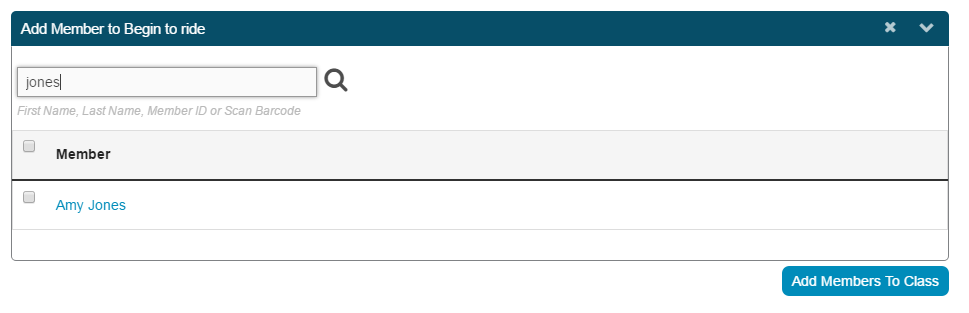
Add a Member - To add a member to the class, click Add Member and search by First Name, Last Name, Member ID or Scan Barcode. Click the member you would like to add, and click Add Members To Class. Once added, check the member in the member’s list and click Check In to check in to class.
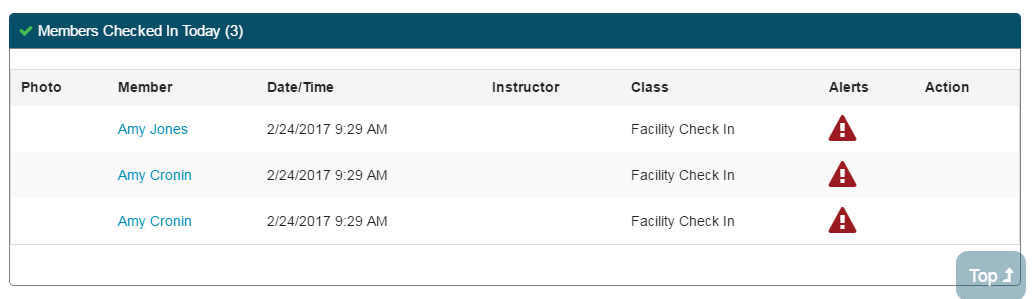
Members Checked In Today – this list will show all members checked in today.
Alerts - Click to view alert for a specific member.

Still need help?
If you can’t find what you’re looking for, our support team is happy to help.