

Create Lead Source
Last modified by Isaac Mejia on 2025/12/15 16:19
Last updated on December 15, 2025
Create Lead Source
Create Lead Source
Created by
Amith, last modified by
Cathy Beckstead on Feb 18, 2021
This tool is used to see how your leads heard about your business.
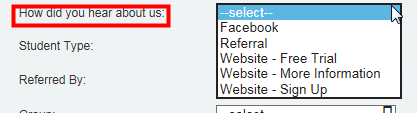
You have the ability to create a Lead Source as well as Sub Sources. You might want to use sub sources to track all your social media in 1 source but then create sub sources to break it down into Facebook, Twitter, Instagram, Yelp etc.
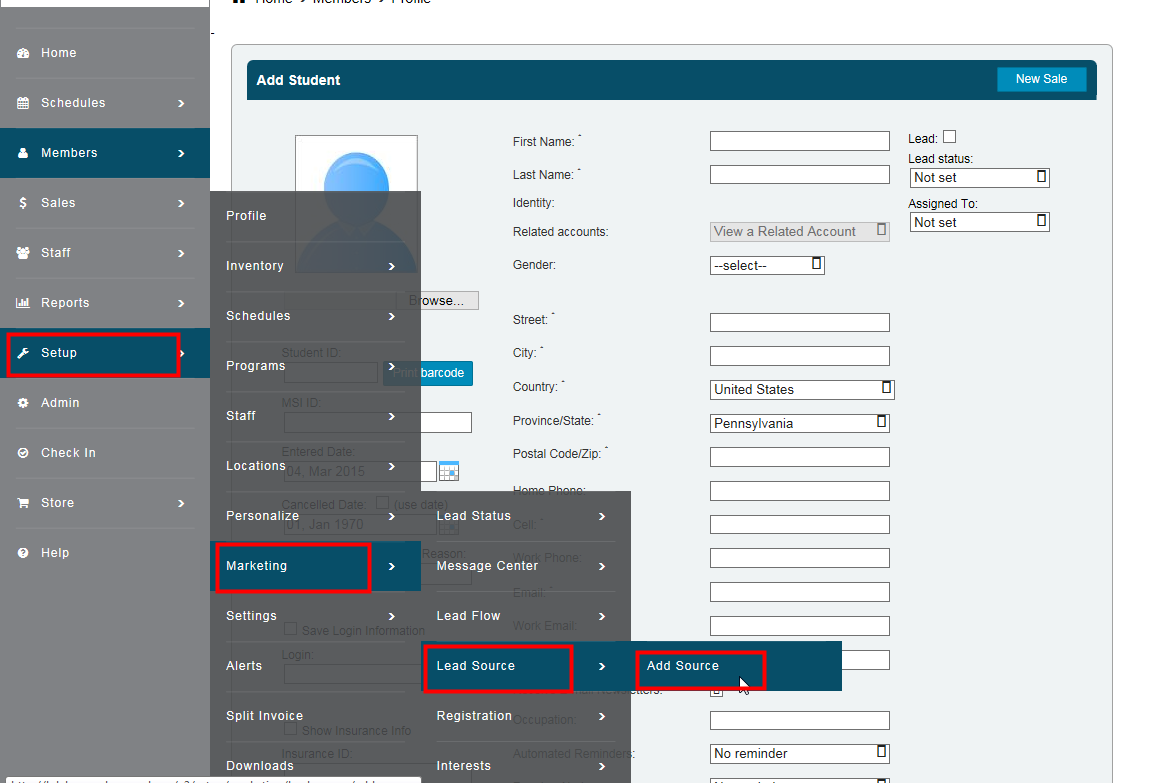
Select the Setup
- Select Marketing
- Select Lead Source
- Select Add Source
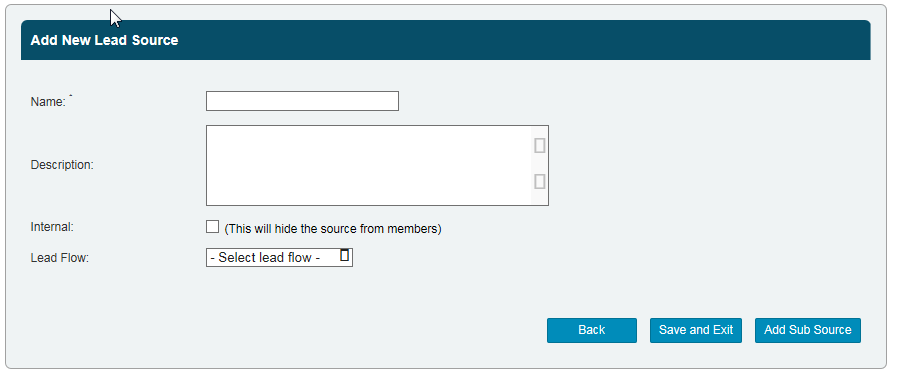
- Name your lead source
- Give your lead source a Description - members will not see this.
- You can mark this lead source as Internal which will hide it from members
- Lead Flow: By selecting a lead flow, all leads that you assign this lead source will automatically be assigned to the lead flow.
IMPORTANT this is how you can automate the entire lead flow sequence is by assigning all your leads from a specific source to a specific lead flow
- You can either select Save and Exit or Add Sub Source (for example: a lead source can be Social Media and a sub source would be Facebook)
Next you can setup the mandatory fields you require during registration of new leads and members as well as creating lead capture widgets for websites.
Still need help?
If you can’t find what you’re looking for, our support team is happy to help.