

Adding A New Member During Sale
Last updated on December 15, 2025
Adding A New Member During Sale
Adding A New Member During Sale
Created by
Amith on Feb 05, 2021
Adding a New Member during Sale
The Member Manager Point of Sale allows you to add members to your data “on the fly”. When searching for a member during the sales process, if myVolo does not find the member in the system, you will be prompted to add the member. myVolo gives you a quick and easy data entry screen. No need to navigate away from the sale to setup your customer or members.
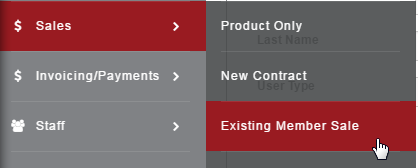
To add a member during the sale, go to Sales>Existing Member Sale and search for a member.
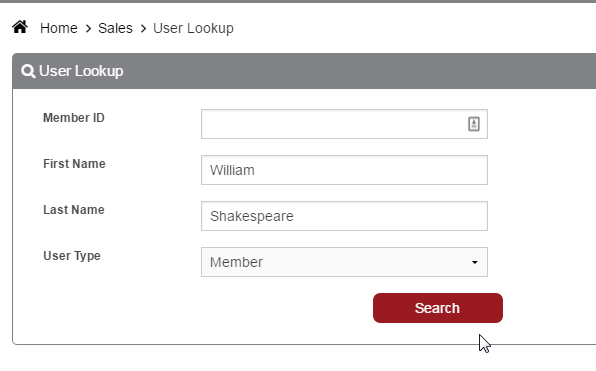
If Member Manager does not find the member, you will be prompted to add them.
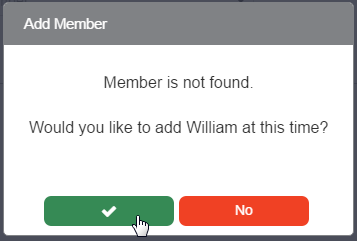
Click Yes, to add a member, No to return to the previous screen.
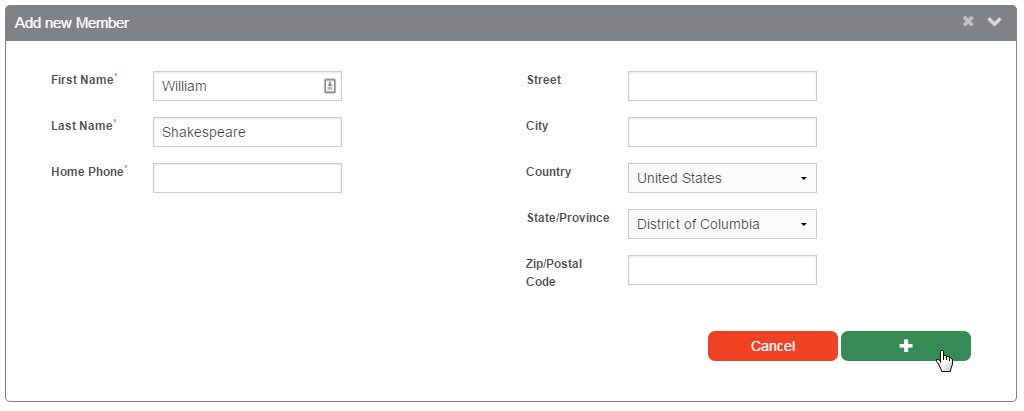
Once you click “Yes”, the Add New Member pane will display with your member’s name pre-filled. Fill in the address and phone number, and click Save.
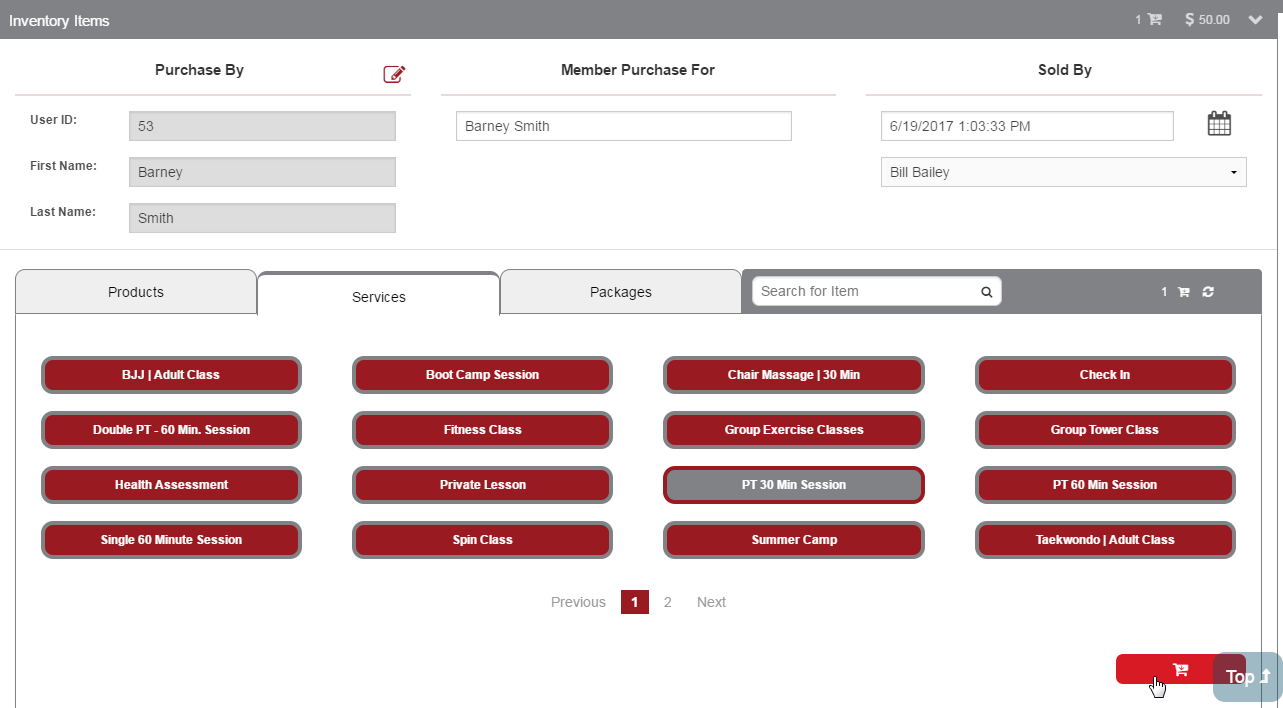
Your new member is now entered into the system, and you will be returned to the Inventory pane to complete the sale.
Still need help?
If you can’t find what you’re looking for, our support team is happy to help.