

Book Time Off
Last modified by Isaac Mejia on 2025/12/15 16:48
Last updated on December 15, 2025
Book Time Off
Book Time Off
Created by
Amith on Feb 05, 2021
A staff member can book time off by going to their Week View. This will block that time slot, and not allow any members to book for that instructor during that time.
To Book Time off, go to Schedules and click on the schedule for that instructor.
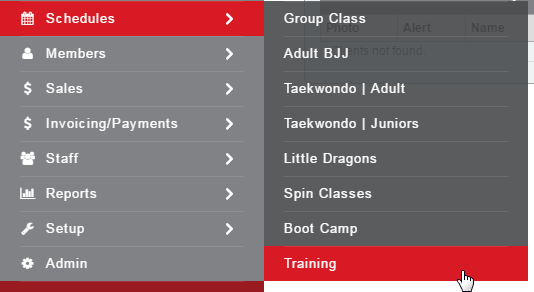
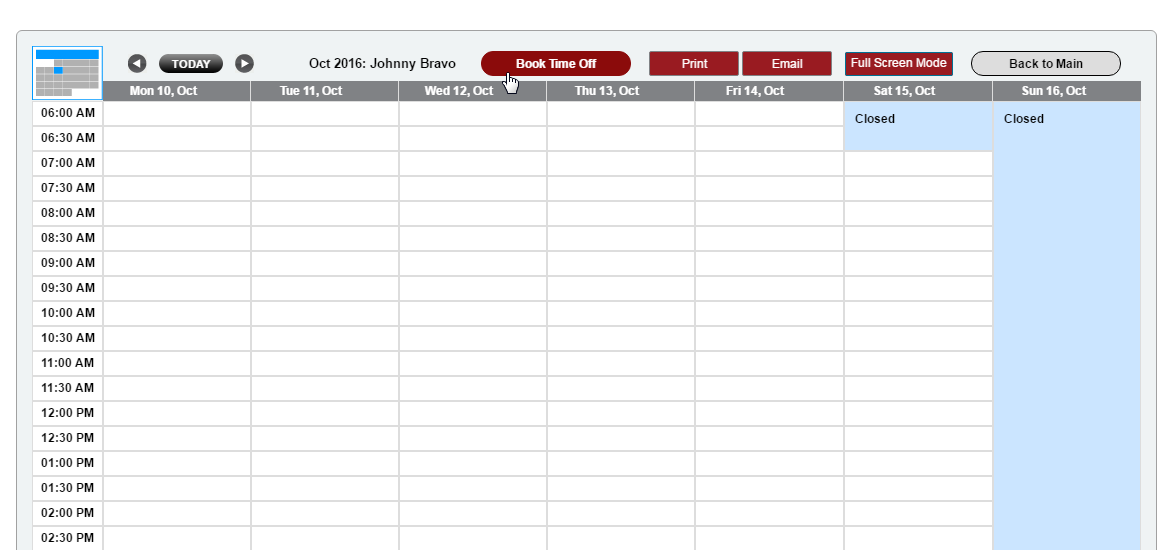
- You must be on a Staff Member's Week View to be able to book time off
- To see the Week View, click on the Staff Member's name.
- Click Book Time Off
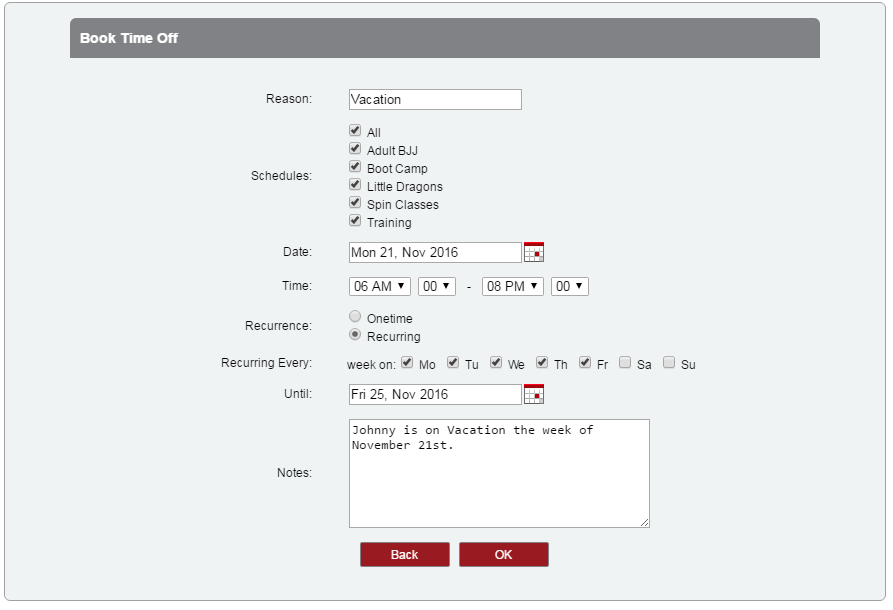
- Enter in the Reason why you are booking time off.
- You now have the option to select which schedule(s) you'd like to Book Time Off on.
- By default, all schedules will be selected so uncheck any schedules that you would like to still have available.
- Select the applicable Date and Time
- Select whether this is Onetime or Recurring. In this example, we booked the full week off, but you can book just one day or part of a day.
- Click OK
Still need help?
If you can’t find what you’re looking for, our support team is happy to help.