

Embedding YouTube Videos In Your Member Portal
Last updated on December 15, 2025
Embedding YouTube Videos In Your Member Portal
Embedding YouTube Videos In Your Member Portal
Created by
Brian Houy on Dec 16, 2020
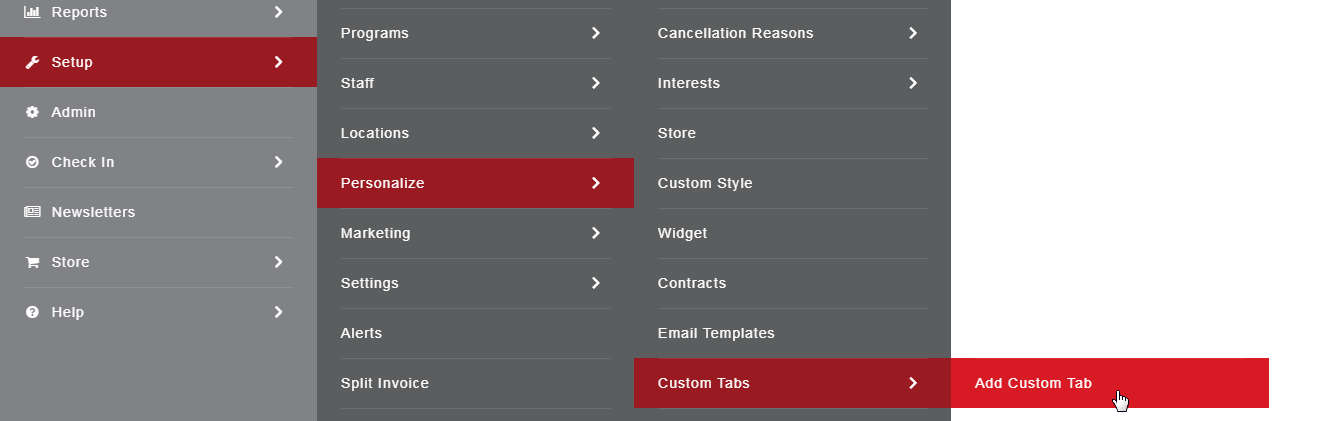
To add a video to your member portal, start by creating a custom tab. Go to Setup>Personalize>Custom Tabs>Add Custom Tab
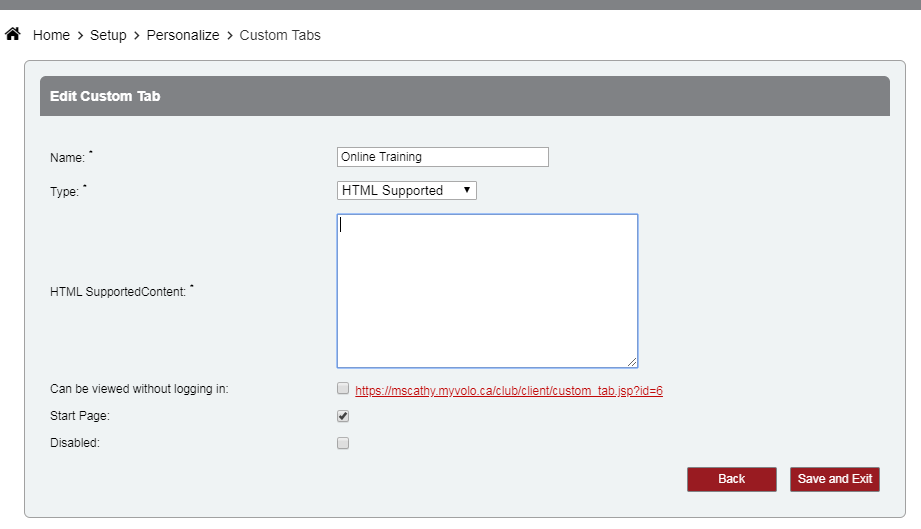
Here you can name your tab and choose HTML Supported. We will go back and add the content, once we have the YouTube link information. You can check Start Page if you want this tab to be the first tab they see when your members log in.
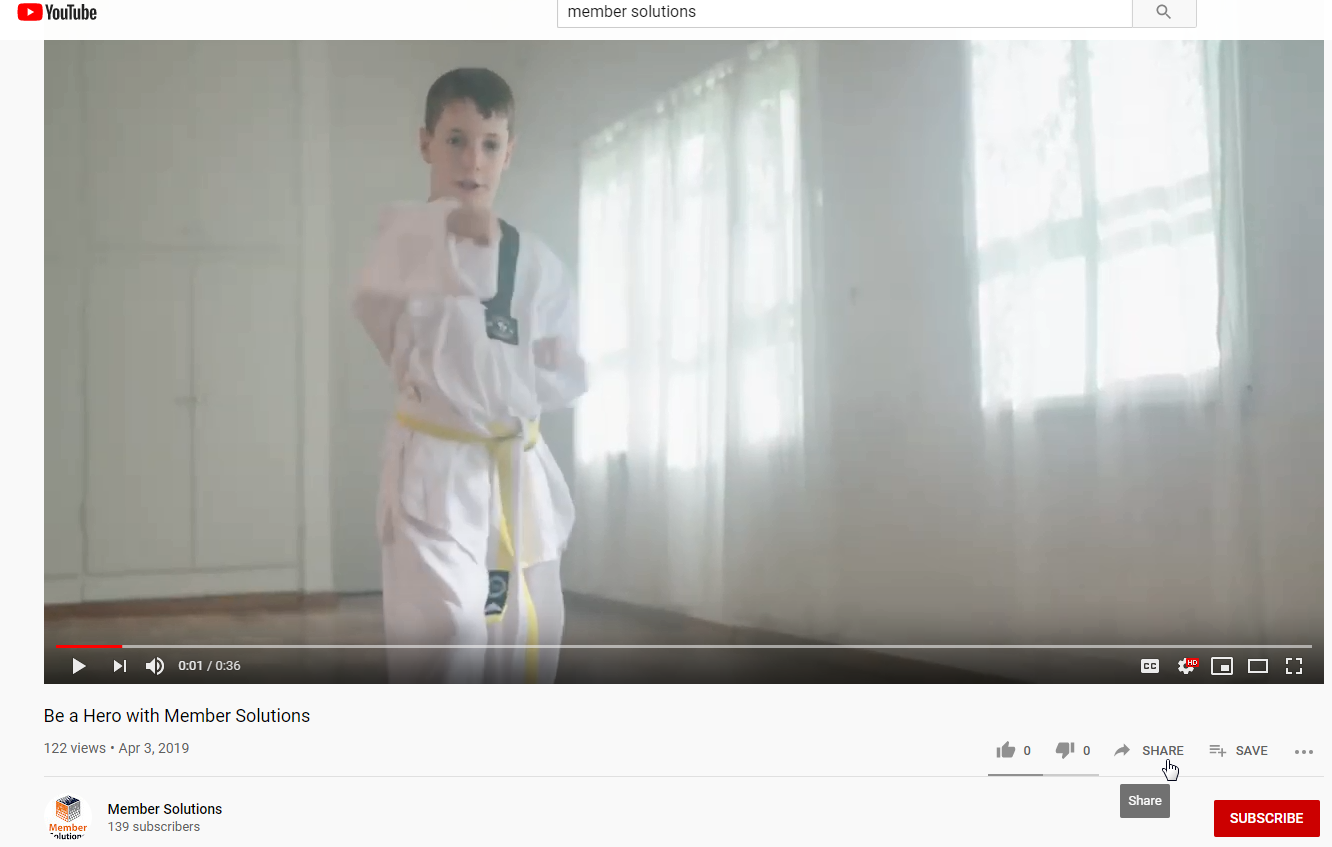
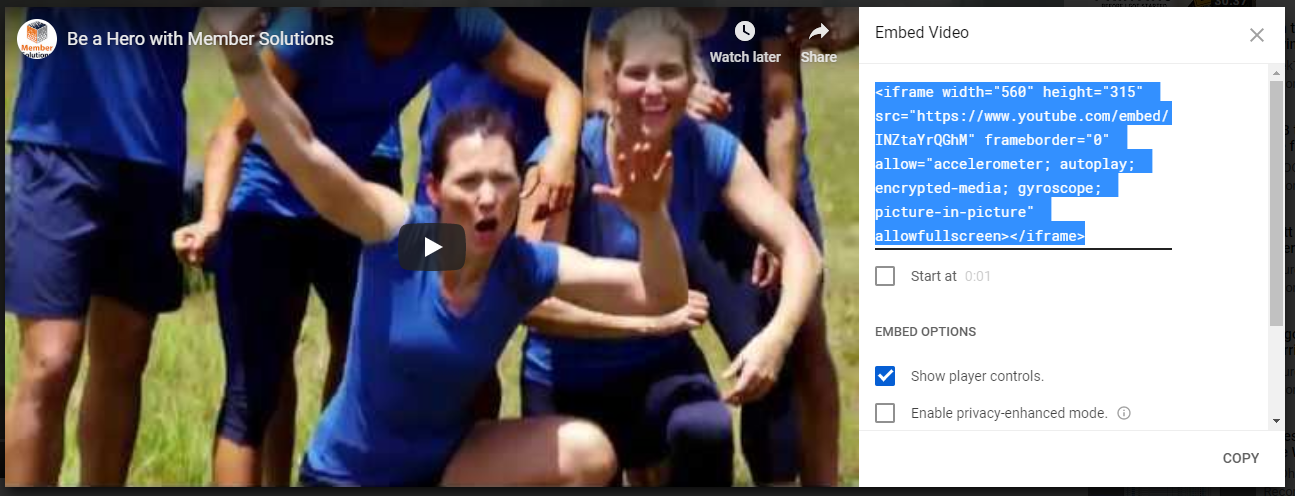
Next, go to your YouTube channel where you have saved the video you would like to embed. Find your video and click Share.
Then click the Embed option.
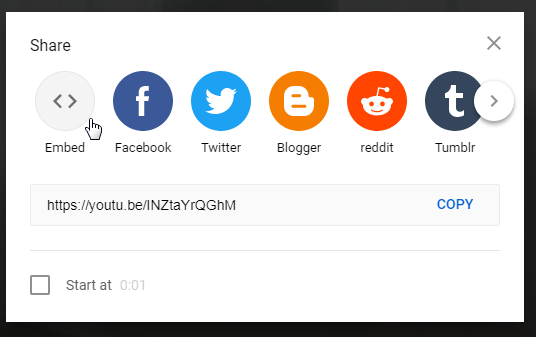
This will give you your embed HTML code. Copy the Embed Video code.
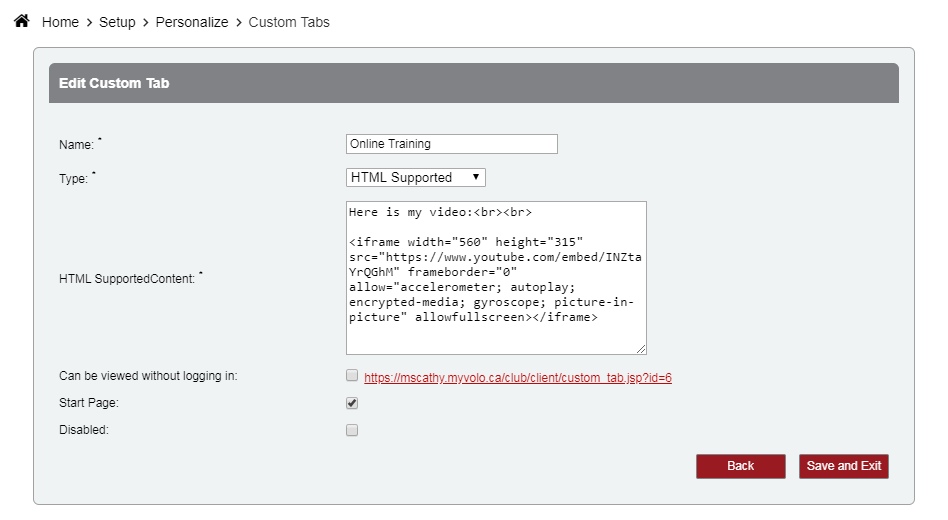
Next go back to your Custom Tab in the Member Manager by going to Setup>Personalize>Custom Tab and click Edit on the tab you created. You can type any description of your video on the HTML Supported Content area, and then paste the embed code after your description. You can add two line breaks at the end of your text if you would like the video to appear below your description.
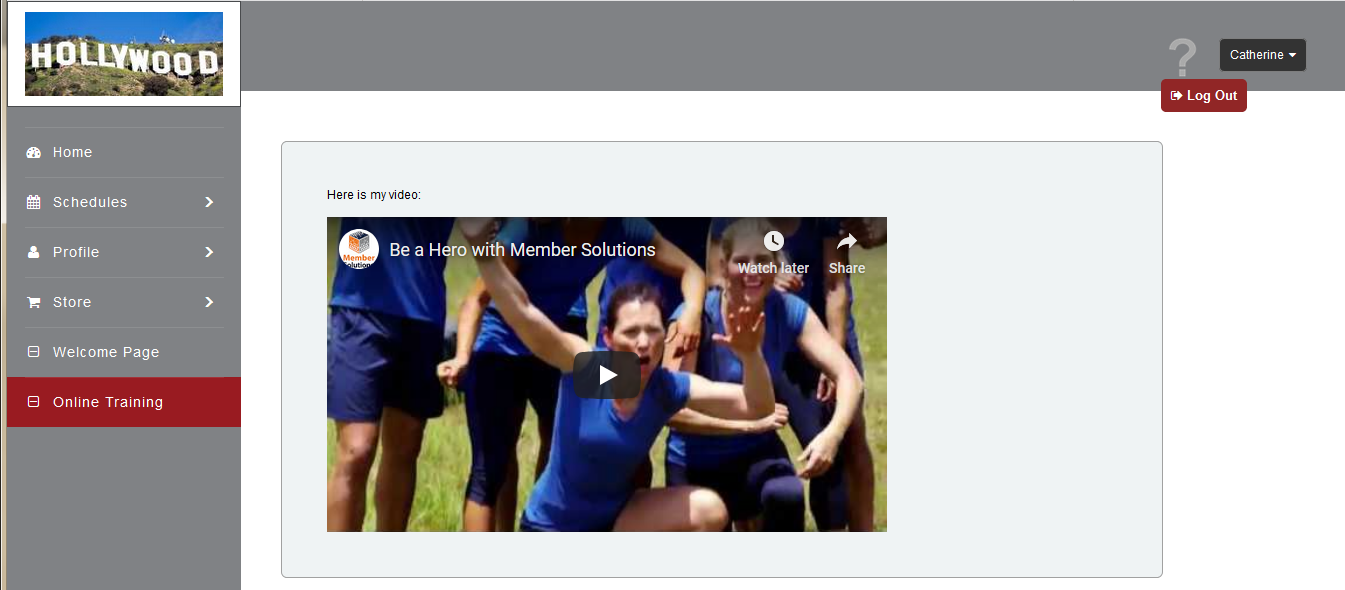
Once your members log into the member portal, they will have your new tab and be able to view your YouTube video.
Still need help?
If you can’t find what you’re looking for, our support team is happy to help.