

Full Service Billing - Fee Visibility
Last updated on December 15, 2025
Full Service Billing - Fee Visibility
Full Service Billing - Fee Visibility
Created by
Cathy Beckstead, last modified on Jan 07, 2025
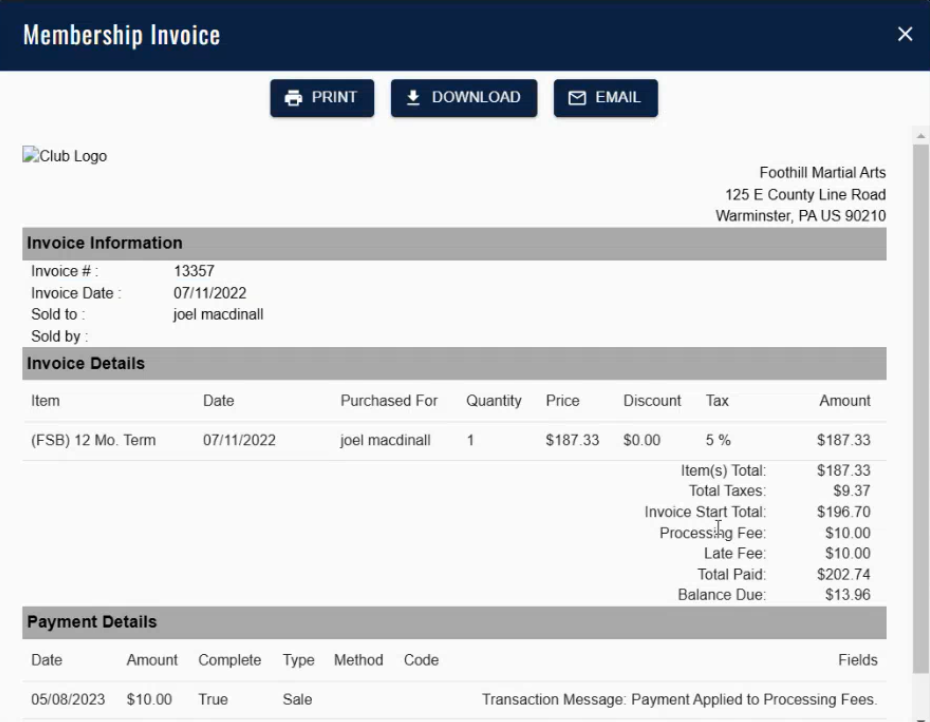
For anyone billing through Member Solutions Managed Billing Full-Service feature, fee information can be viewed in the Member Manager and Member Portal on the invoice details.
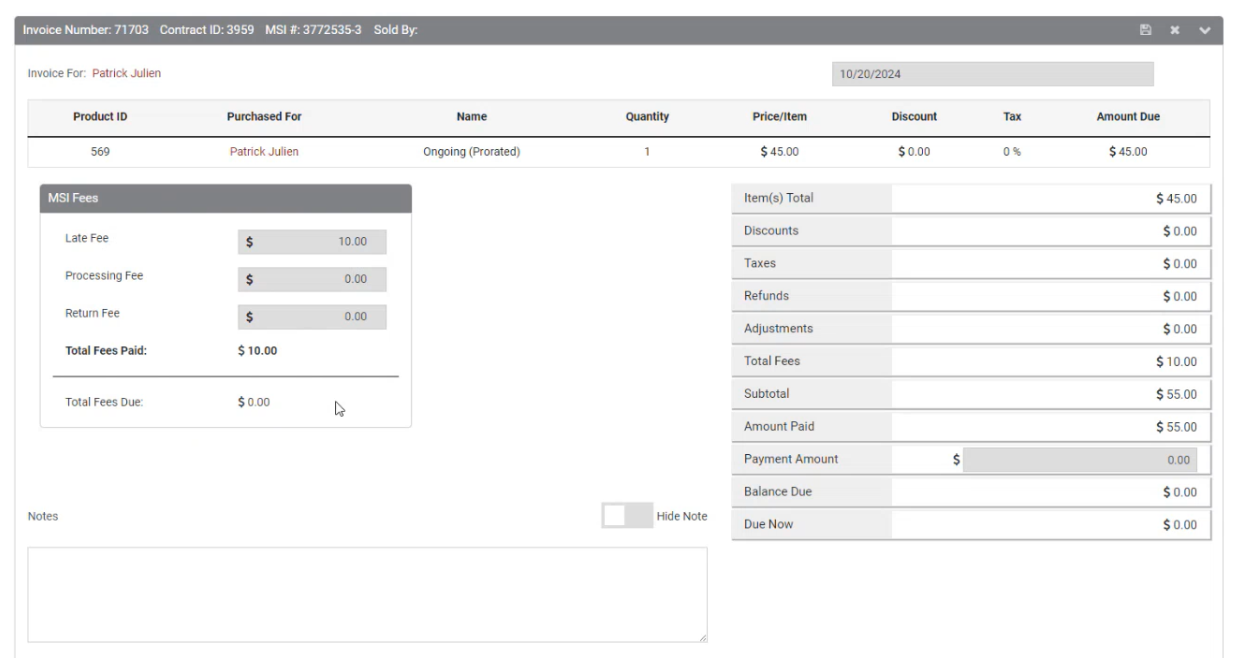
Member Manager: By clicking on the invoice number, you can see any fees that were processed and how payments have applied to fees. Fees are shown as line items on the right side of the invoice details, and in a separate box on the left with details of each type of fee. Fees will be the first item deducted from payment transactions where fees are included in the balance.
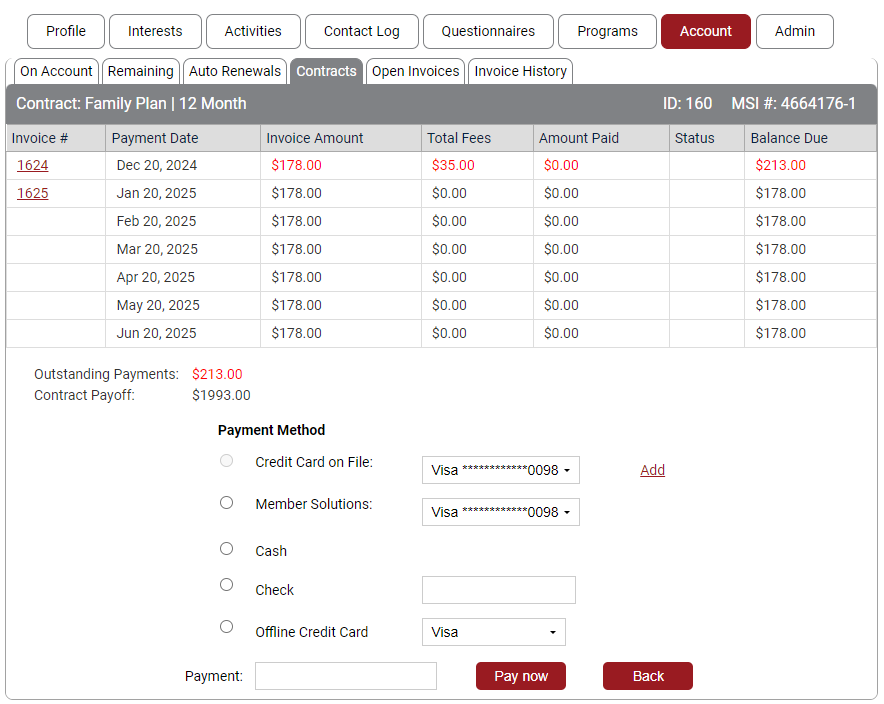
When paying on a past due account, fee details are shown in the “total fees” column. To enter a payment, click Pay Contract from the Select Action drop down under Account>Contract or Pay Contract on any contract invoice.
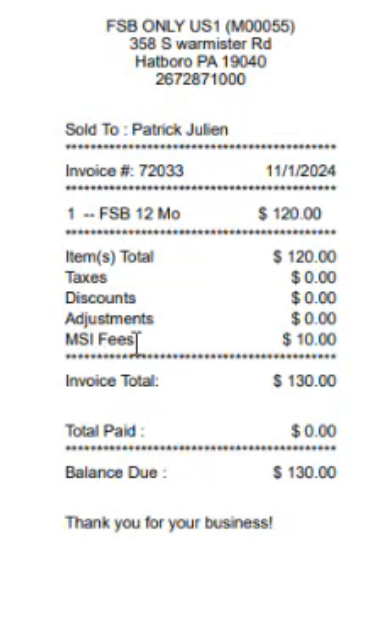
Fees are also shown on any printed Member Solutions receipts:
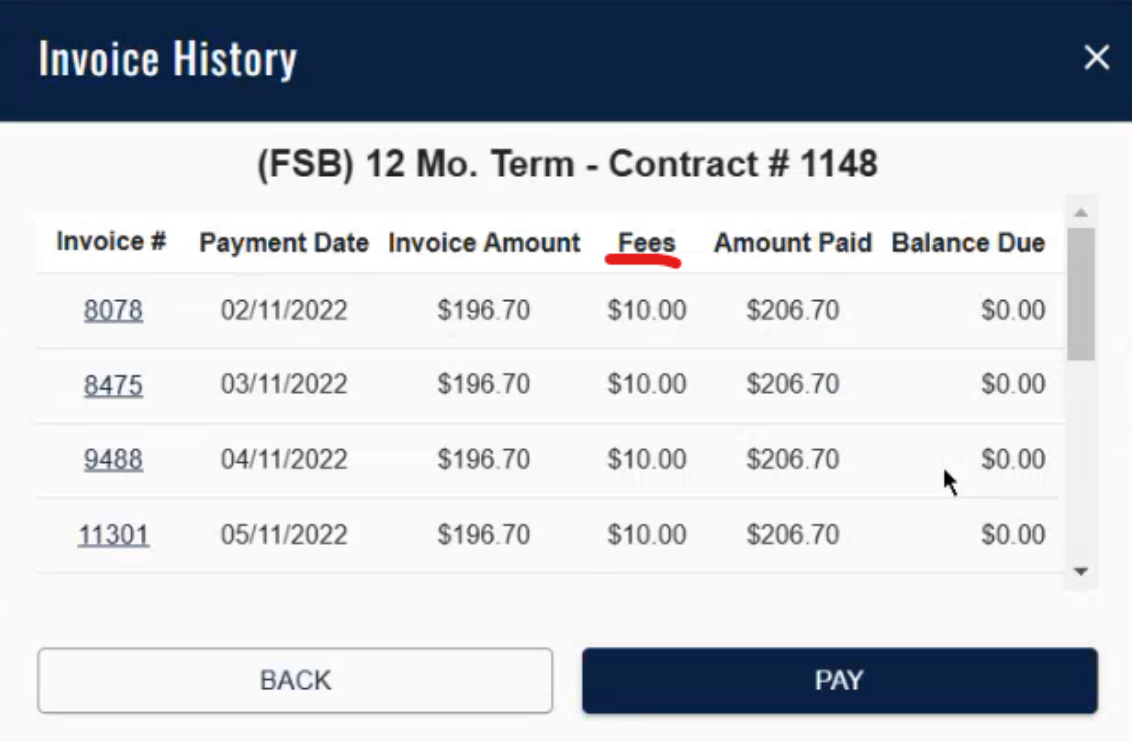
Member Portal: For your members viewing their accounts and invoices on the Member Portal, fees are shown in a separate column on the Invoice History and detailed on the specific invoice.
Still need help?
If you can’t find what you’re looking for, our support team is happy to help.