

Clearing Your Cache History For Chrome, Firefox And Edge
Last modified by Isaac Mejia on 2025/12/15 16:16
Last updated on December 15, 2025
Clearing Your Cache History For Chrome, Firefox And Edge
Clearing Your Cache History For Chrome, Firefox And Edge
Created by
Amith, last modified by
Cathy Beckstead on Apr 14, 2023
On Chrome:
In the top right, click the Menu .
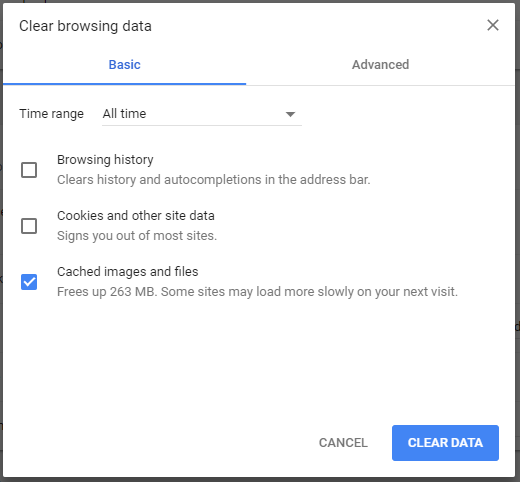
- Click More tools > Clear browsing data.
- In the dialog that appears, select the checkboxes for the types of information that you want to remove. In this case, you can just click “cashed images and files”
- Use the menu at the to choose All Time under the Time Range.
- Click Clear browsing data.

On Firefox:
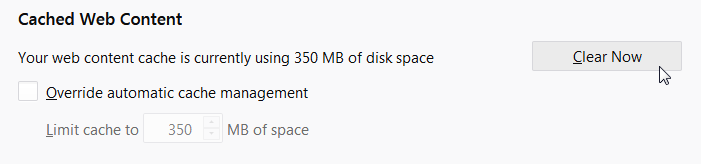
- Click the menu button and choose Options.
- Select the Privacy & Security.
- In the Cached Web Content section, click Clear Now.

In Edge:
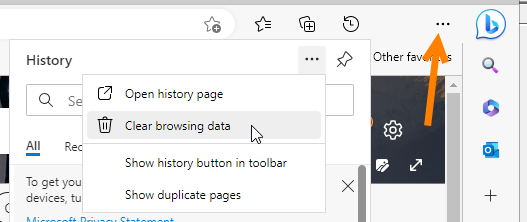
- To clear cache on Edge, click the three dots in the upper right to open History.
- Then click the three dots in the history window and click Clear Browsing Data.
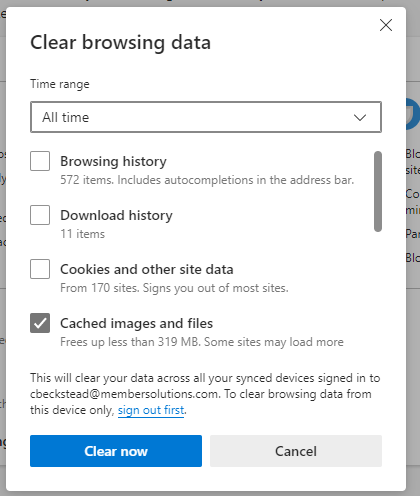
- Choose All Time for the time range, and check only the Cashed images and files. Then click Clear Now.
Still need help?
If you can’t find what you’re looking for, our support team is happy to help.